
TypeScoop
Capture the text you can’t select.
Press Command + Shift + 2, drag around the words on screen and paste the recognised text into your next app. A Mac utility for getting useful text out of screenshots, paused videos and windows that will not let you select it.
Product design · Native Mac development · Rust · Text workflows
In development
CommandShift2

Screen capture
When the words are stuck on screen.
CommandShift2
Press Command + Shift + 2 and drag around the words you want to capture. Use it when a paused video, screenshot or dialog will not let you select its text.
The opening illustration introduces that interaction. It is explanatory artwork, rather than a screenshot of the app.
Text commands
Copy. Clean up. Carry on.
ControlOptionCommandH
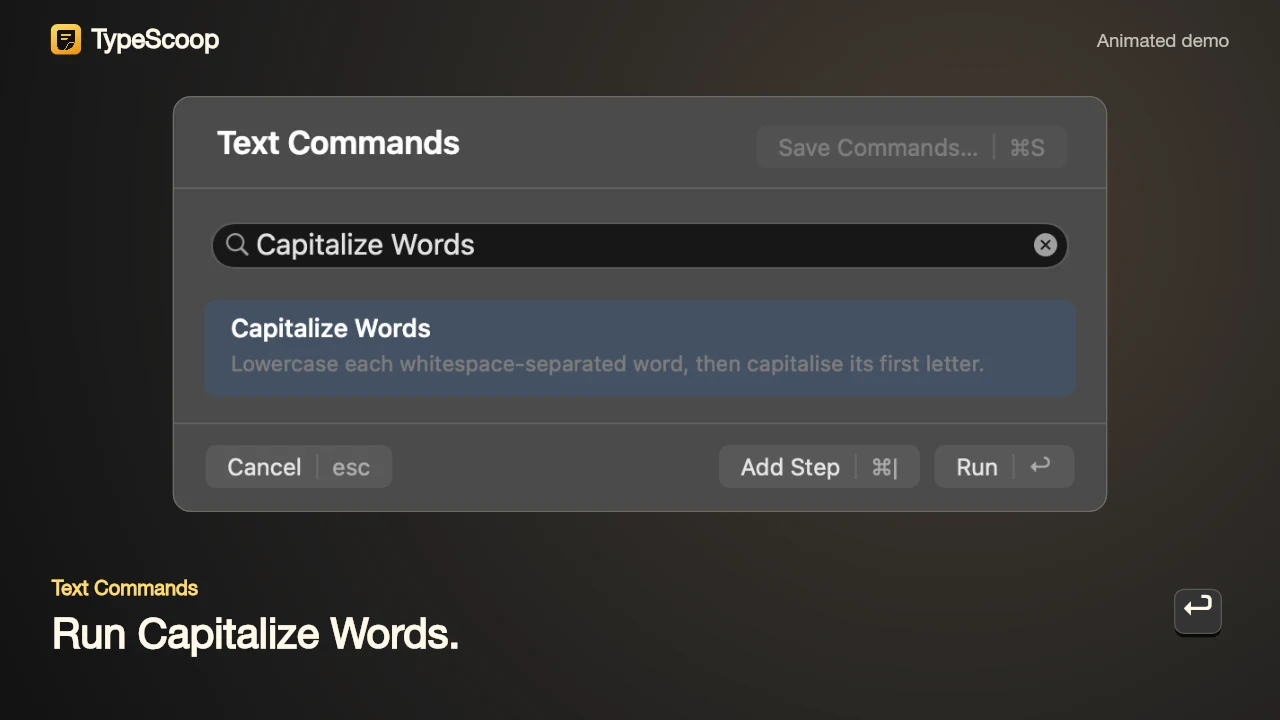
After capturing text, press Control + Option + Command + H to open the command menu (HUD). Choose a transformation, run it and paste the result where you need it. You can also use these commands with text you have selected and copied normally.
A regular job for me is turning a messy name into something useful for a filename or URL. I lowercase the words, remove unwanted characters and replace spaces with dashes. Other commands handle smaller edits, such as trimming whitespace or capitalising words.
Piping
Combine the steps you repeat.
Some jobs need more than one transformation. Piping runs a sequence of commands, with each step working on the previous step’s result.
For a filename, that might mean trimming text, lowercasing it and replacing spaces with hyphens. Save the sequence as a named command so it is ready the next time you need it.
The CLI
Make room for your own commands.
The command-line interface lets me author and test text commands outside the HUD, then bring them into the native review flow.
This was part of the appeal of building TypeScoop in Rust. I wanted a tool I could use for immediate capture, with a path to extend the transformations as my own work changed.
The starting point
Two useful tools. One everyday workflow.
I used TextSniper to grab text I could not select, and Keyboard Maestro to manipulate text I had copied. I wanted to see whether I could bring those jobs together in one tool and improve my own productivity.
It was also a chance to learn Rust and explore a simpler way to create text commands through a command-line interface. The starting point was my own repeated work.
Showing the journey
A short demonstration beats a long explanation.
The launch website uses short animated demonstrations to connect capture, text commands and pasting into the next app. The aim is to make a small utility understandable at a glance.
These are prepared demo edits. Continuous footage of a qualified release build remains part of the release work.
Current stage
A working idea, still being refined.
TypeScoop is in development. The native app and launch website are being shaped together, with command examples and demonstrations helping explain the tool.
Release qualification, the public download and the purchase journey remain further work. For now, this is a look at the product’s purpose, its interaction design and the everyday problem that started it.
Have a build that needs to work better?
I bring the same care to the products I help other people get over the line. I work to understand the real workflow, simplify the difficult steps and carry the design through implementation.